MSR90 Software Download and Reader Setup Guide
Download MSR90 software for Windows or choose an MSR90 reader app for iPhone, iPad, and Safari. This guide explains which download to use, how USB keyboard-emulation mode works, and how to fix common MSR90 reading problems.
The MSR90 is a hand-swipe USB magnetic stripe reader. In its standard keyboard-emulation mode, it sends read data to the active text field like a USB keyboard, so basic reading may work without installing a separate driver.
Choose the Right MSR90 Download
| What you want to do | Platform | Recommended download |
|---|---|---|
| Configure or test an MSR90 on a PC | Windows | MSR90 Windows software |
| Capture reads into structured files | iPhone or iPad | MSR Reader on the App Store |
| Enter parsed card data in a website | Safari | MSR90 Reader for Safari |
These downloads serve different workflows. If your device is an MSR605X reader/writer rather than an MSR90 keyboard-emulation reader, see the MSR605X Android USB software guide.
MSR Reader App for iPhone and iPad
MSR Reader is designed to capture supported MSR card data continuously and export structured results to a CSV file. CSV files can be opened in Microsoft Excel, Apple Numbers, Google Sheets, and other spreadsheet tools.

MSR90 Reader for Safari
MSR90 Reader for Safari is a Safari extension for sending parsed reads into supported browser-based workflows. It can help enter data into tools such as Google Sheets, Zoho Sheet, QuickBooks, Google Forms, Airtable, and compatible CRM forms.
Reader app features
- Automatic parsing of supported magnetic stripe track data
- Separate output for individual tracks
- Structured fields for supported card data
- Grid input and automatic movement to the next row for repeated reads
- CSV export for spreadsheet workflows
- Direct input into supported Safari web applications
MSR90 Software for Windows
Download MSR90 Software for Windows (ZIP)
The Windows package is hosted on EasyMSR. Download the ZIP file, scan it with your normal security software, extract its contents, and run the included setup only if you need the configuration or structured-data functions. Basic keyboard-emulation reading may not require this software.
How to Set Up an MSR90 on Windows
- Connect the MSR90 directly to a working USB port.
- Wait for Windows to recognize it as a USB keyboard-compatible input device.
- Open Notepad or another plain-text editor and click inside the document.
- Swipe a test card that you are authorized to use.
- If text appears, the reader is working in keyboard-emulation mode.
- Install the Windows software above only when you need its additional configuration or data features.
Tutorial video:
MSR90 Compatibility
| Item | Details |
|---|---|
| Connection | USB |
| Standard input mode | USB keyboard emulation |
| Read capability | Up to three supported magnetic stripe tracks |
| Common formats | ISO/IEC 7811, AAMVA, and compatible CA DMV data |
| Typical uses | Authorized access-control, membership, identification, and data-entry workflows |
The reader hardware and app workflow must both be compatible with your device and card format. The MSR90 is primarily a reader; do not choose it when your workflow requires an MSR605X or MSRX6 reader/writer.
MSR90 Troubleshooting
Nothing appears when I swipe a card
Click inside a text field before swiping. Try another USB port, avoid an unpowered hub, and test in a plain-text editor. Swipe the card in the direction and at the speed recommended for the reader.
Windows does not recognize the reader
Disconnect the MSR90, restart the computer, and reconnect it directly to another USB port. Check Windows Device Manager for an unknown or disabled input device.
The data appears in the wrong application
Keyboard-emulation readers type into whichever field currently has focus. Click the intended field immediately before swiping, or use the appropriate MSR Reader app for a structured workflow.
The read is incomplete or inconsistent
Clean the reader slot according to the hardware manufacturer’s instructions and test with a known-good card. A damaged stripe, uneven swipe speed, or incorrect card orientation can cause partial reads.
Do I need an MSR90 driver?
Usually not for basic input. A standard MSR90 in keyboard-emulation mode is normally recognized as a USB input device. The downloadable software is for workflows that need more than plain keyboard input.
About the MSR90 Reader
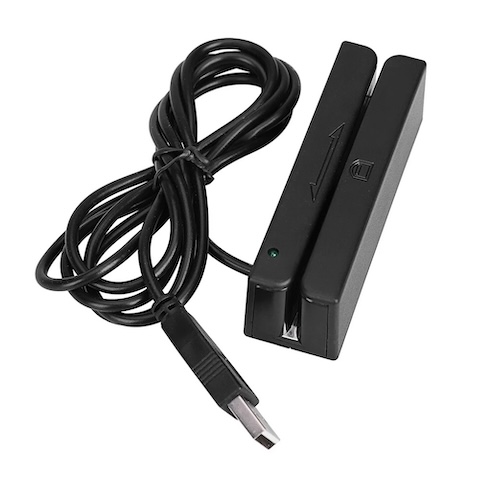
The MSR90 is a compact, hand-swipe magnetic card reader designed for quick data capture. Its USB keyboard interface, low power requirements, and support for common magnetic stripe formats make it suitable for compatible POS, access-control, membership, and authorized data-entry systems.
Frequently Asked Questions
Can MSR90 software write magnetic stripe cards?
The MSR90 is generally used as a reader. If you need supported write operations, confirm your hardware model and see the MSR605X USB software or MSRX6 Bluetooth software instead.
Can I use an MSR90 with Excel or Google Sheets?
Keyboard-emulation input can be entered into the selected cell, while the MSR Reader app can export structured CSV data. The Safari extension is intended for compatible web-based spreadsheet and form workflows.
Is the MSR90 Windows download free?
The ZIP package linked on this page can be downloaded without charge. Hardware and third-party platform requirements still apply.
Related EasyMSR Guides
- MSR605X Android USB software download
- MSRX6 Bluetooth software for Android and iOS
- EasyMSR software compatibility overview
- MSR880 Android app and software
Contact Us
For help, contact msr@tcool.ltd. Include your reader model, operating system, connection type, and the setup step that failed.